My Tech Tips


  • Home
  • Tips
  • Newsletter
  • Get in Touch
  • Privacy

Understanding Computer Communications

28/12/2020

 
In earlier articles I have described the origin of computers and charted their development over the years. I have explained how today’s computers actually work and have provided some guidance about browsers, search engines and how to find information on the internet.  Now I want to look at how we connect to our computing device (which might be a laptop, a desktop, a tablet or a phone) and how that device connects to the outside world and communicates across the internet.

What is communication?
First, however, a few words about the subject of communication. Since time began man has needed to communicate with others – to exchange information. Before speech I imagine that communication was by means of hand gestures but when speech arrived the concept of language evolved. Each language would have been different from others though some might just have been closely related. These days there are known to be over 7000 distinct spoken languages in the world (and each of these can have many regional dialects).
 
But speech has not been the only means of imparting information over the centuries as these pictures indicate:


​

A common factor in all of these of course is distance. The greater the distance the less effective the means of communication. Some work over greater distances than others – compare smoke signals and flags. But there is another distinction to make; some forms of communications are visual - relying on seeing something being communicated. Other forms are based on the transmission of sound. But key to all of them is the need to overcome the constraints of distance.

Speech, for example, can travel further if you shout or amplify the sound of your voice. Another technique could be the use of a relay (or repetition). In its simplest form this could be shouting a message to someone who, in turn, relays it to the next person in the chain. Or there could be a visual relay such as sending smoke signals from one hill to another and then having the message sent on further. Over history, early warning systems have utilised fire beacons lit on prominent hills – announcing some event or threat. Keep in mind these concepts of amplification and relay because they form key ingredients of modern-day computer communications.

How does this relate to computer communications?
In my article ‘How do computers actually work?’ (Read it here) I described how early digital computers used some form of electric spark or signal to “instruct” the computer to carry out a particular action. This led to realisation that you could “programme” a computer using a sequence of signals. Programmes are how we communicate with the computer but how do computers communicate with each other and connect to the outside world?  Just as early man sent a stream of smoke signals to convey his message, so computers send a stream of electronic signals in order to communicate. These signals represent numbers and we learnt in the earlier post that the numbers are represented by the use of 1s and 0s in binary arithmetic. There are two issues to examine. First, how the signal passes from one computer to the next and, second, what is the pathway along which that signal travels.
​
How does the signal pass from one computer to the next?
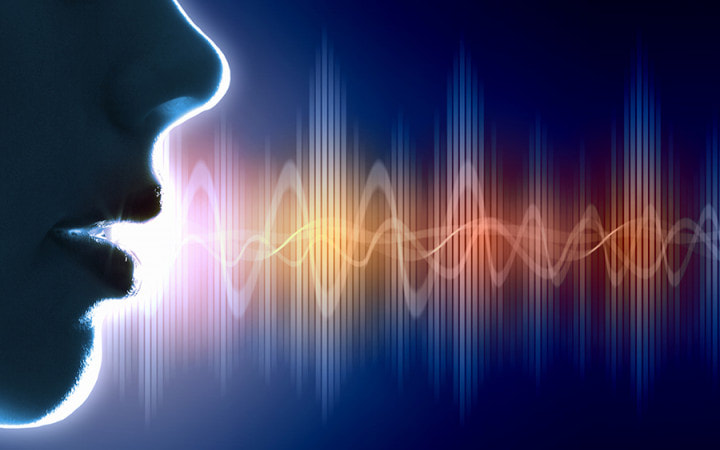
We’ve learnt that the passage of signals is sent electronically. But how does this happen? If we think of using the telephone to speak to someone, the sound of our voice goes up and down in a wave.
Picture
This wave fluctuates up and down both in the loudness of the voice (amplitude) and its highness or lowness (pitch or frequency). Telephone lines transmit the voice signals on an ever-changing wave. To understand the difference, just ask yourself “Do I speak in 1s and 0s?” No, of course not. But computers do. This is the key difference; our voice signals are analogue (they vary up and down) but computer signals (data) are digital (either 1s or 2s, up or down, on or off). Telephone lines can only handle traffic (voice or data) using fluctuating waves. The microphone part of the phone conveys your voice and the speaker part enables the sound to be heard.
 
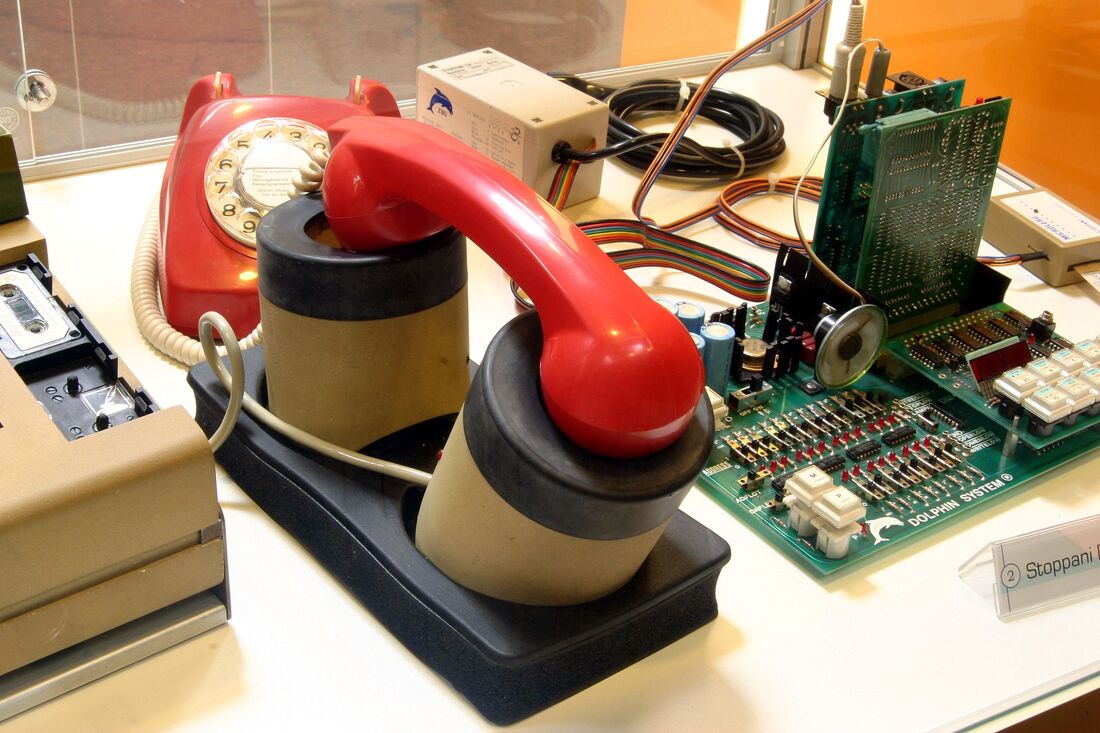
With computer data there has to be some way to translate the information from digital 1s and 0s to analogue wave patterns. This translation is called modulation. At one end of the line the signals are modulated and at the receiving end the signals are demodulated. The piece of equipment to do this is called a MODEM (Modulate/Demodulate). Forty years ago, when Personal Computers were starting to appear, we sought ways to join computers up and send messages. Enter the Modem. I remember using a modem into which you inserted the telephone and this enabled signals to be transmitted.  This early modem was called an acoustic coupler. Below is what it looked like and if you click the link underneath you can hear what it sounded like. That noise is the process of turning digital 1s and 0s into sound waves so they can travel over a telephone line.
Picture
To hear what it sounded like CLICK
​We still use modems to this day. There is one inside every internet router or hub that sits on your desk. Thankfully they make no noise whatsoever now.
 
But do you remember that, at one time, if you had hooked up your computer to a modem you couldn’t use the telephone to speak to someone on the same line? Fortunately this was overcome by a development called Voice over Data. (NB for those more up-to-date readers. This is not the same as modern Video on Demand (VOD). More sophisticated modems/routers soon enabled the two to work at the same time on the same telephone line. There was an old joke that suggested this was possible because computer bits were heavier than speech and so fell to the bottom of the telephone line. In fact it was because technicians worked out how to split the capacity of the telephone line into a voice section and a data section. Overnight it became possible to speak to someone whilst another member of the family in another room was “on the computer”.
 
What is the pathway along which that signal travels?
Having looked at how signals travel let’s consider the medium over which they move. For the past several decades this has been a simple, telephone copper wire. Even today the copper wire still dominates a lot of the lines to our houses and businesses. Increasingly we are seeing the introduction of Fibre internet. British Telecom (BT) has ownership of all the telephone cabling in this country. Nearly all the main (trunk) networks have now been converted from copper to Fibre. However, this fibre only goes as far as the green cabinet on the corner of your street. This is called FTTC or Fibre to the Cabinet.  The final connection from the cabinet to your house can be either copper (still) or, if you pay more, fibre. The costliest connections have fibre directly into the house or office and are called FTTP or Fibre to the Premises. Even if another broadband provider offers you a service the reality is that they have to rent the trunk cabling from BT.

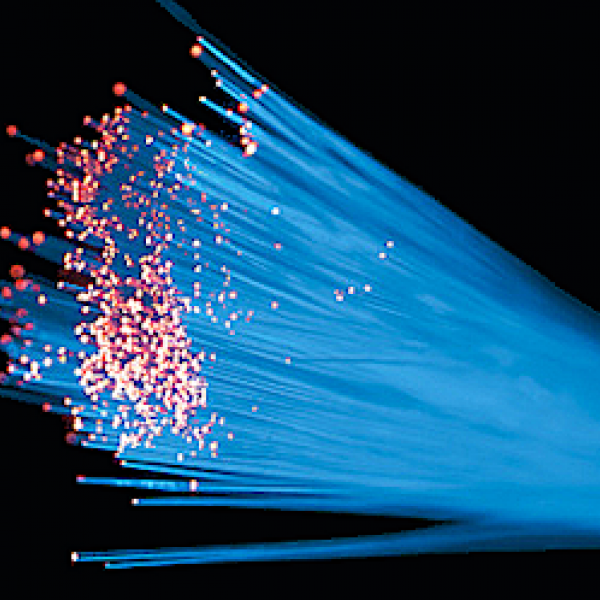
So what is the difference between copper wire and fibre?  Here are pictures of a standard 5 pair (10 wires) copper telephone cable and, on the right, a multi-strand fibre cable. There can be up to 200 strands of fibre which are usually made of plastic but can be made of glass.
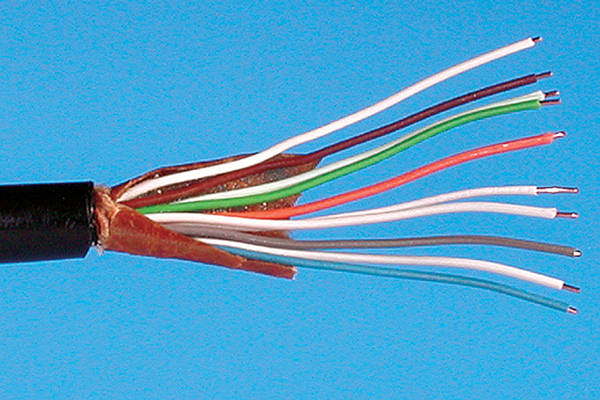
Hang on a minute, you say! I thought you said that computers communicated by means of electronic signals that were translated from the computer to the wave form needed by the telephone line. That all this was done using a Modem. How can you send data over a fibre link then? Well, the answer is that fibre carries its information using Light which is why they are called optical cables.  With fibre the usual modem is replaced by an optical modem which converts the 1s and 0s to pulses of light and then converts them back again at the other end.

Where is the future going with communications?
In addition to optical fibres, there are other ways in which data can now be transmitted.  These are by 
wireless, by satellite and sound. Some of these exist now and others are emerging technology.  However, I reckon that I have confused you enough already without adding to your mental overload! I will write more about these other forms of data communication in another article.
How do computers actually work?

20/12/2020

0 Comments

 
In my previous article I outlined the history of computers and explained their development into what we recognise today. I described that computers are, in one way or another, simply calculating devices based on numbers. But how do they actually work?

Note for Computer Experts!  The description that follows is a very simplified explanation of the workings of a computer.  It is not intended to be a definitive or exhaustive account, is not meant as a textbook and probably has more holes than a block of Gruyere cheese. E&OE (Errors and omissions Excepted) as they say in legal contracts.

This post seeks to explain the basics of computer workings and how they rely upon a set of instructions (a programme) to carry out a particular task or tasks. Remember the earlier description of the Jacquard Loom and how different cloth patterns could be produced using a different punched card for each pattern?  In this instance, the operation of the loom was mechanical - a hole in the punched card corresponding to a lever which was activated as the card passed through the loom. The card's passage through the loom was controlled by turning a wheel using a handle or foot pedal. Later models provided power by an engine which worked either by fuel or electricity. Essentially however, the machines were still analogue whereby a physical action created a machine response.

As we progressed into the 20th century we saw the introduction of electrical impulses to trigger certain actions in a computer. Unlike the earlier mechanical calculators (controlled by hand, foot or even electricity turning cogs or levers), an electronic computer works in a fundamentally different way. Here, a power source in the form of a spark of electricity creates a direct response from a component in the computer. To understand the principle think of a light switch which, when pressed, lets electricity flow that then causes the light bulb to light up. The light is said to be ON. Switch again and the light goes out and is said to be OFF.

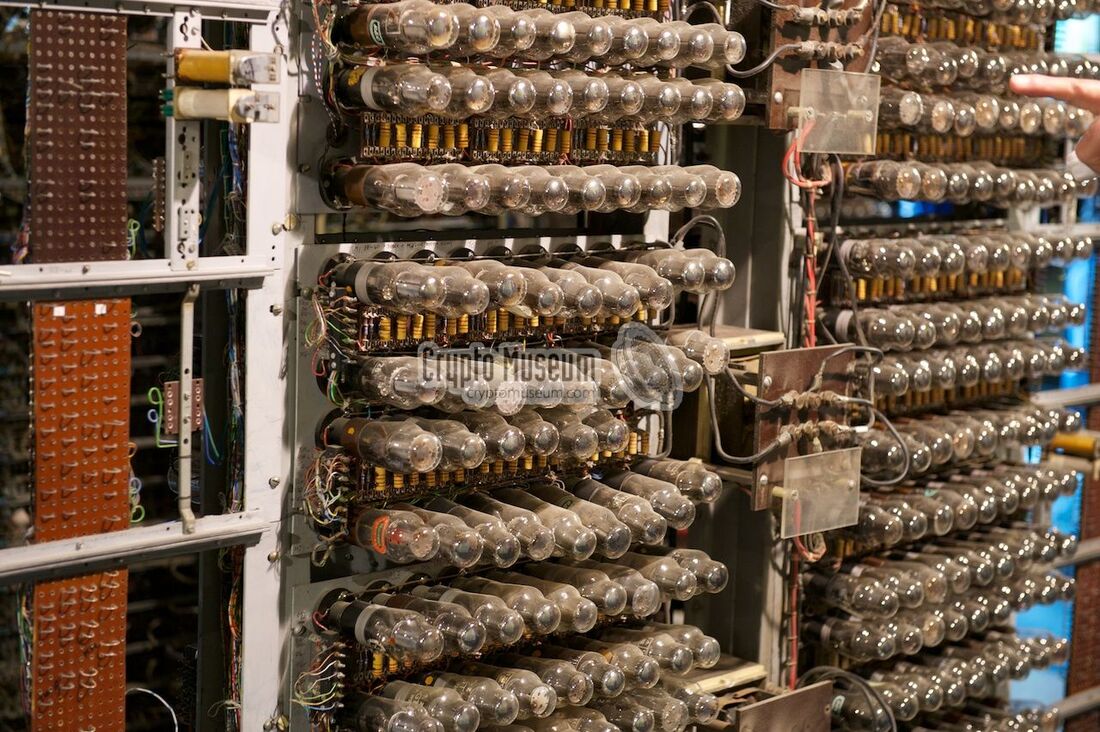
Now imagine the computer is a box full of light bulbs each controlled by a switch. By depressing the switches you can light up the bulbs in any order you wish. The earliest electronic computers were essentially just this except that instead of light bulbs the computer held valves that lit up. In my earlier history I spoke of the first large computer called Colossus. Here is a picture of it showing the valves (photo by courtesy of the Crypto Museum). 
Picture
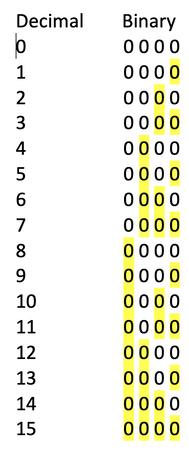
Now, let's imagine a simple computer with FOUR light bulbs/valves. If all these bulbs could be ON or OFF, computer designers realised that you could use the particular pattern of ONs and OFFs to represent a sequence of numbers. In fact, with just four bulbs you can represent the numbers 0 up to 15 - a total of 16 numbers (0 counting as a number of course). Here is a picture of what that sequence would look like (naturally the yellow represents a lit light).
Picture
On the left are the numbers 0 - 15 in our normal DECIMAL form. On the right is each corresponding light pattern in what is called BINARY form. Binary (meaning two) because there are only two ways a light can exist - either ON or OFF. All modern computers work in binary arithmetic. Because the binary system uses the two digits 0 & 1 it is said to be Digital. In the picture above, each of the lights is called a BIT and a group of them together is called a BYTE. Although I haven't shown the full sequence, computers work in groups of eight bits and thus the standard computer unit is a byte of eight bits (in the jargon an eight bit byte).

                              There now follows a light bulb moment.
Picture
Now you can begin to see where the term Megabyte - MB - comes from (Mega is the term for one million). Note, however, that Mb (lower case letter b) means Megabits. Why is this important? Well computers represent their symbols in BYTES but when we talk about communication speeds we always use BITS. Therefore, since a BIT is an eighth of a BYTE, a broadband speed of 2Mb is actually only 250,000 BITS not 2 million - quite a difference. If you wish to download a file that says it is 100MB in size and you have a download speed of 100Mbps (Megabits per second) it will not take you 1 second to download but 8 seconds. Remember this when you next look at adverts for broadband speeds and note that they say "Mbps". 
Picture
​Have I now got you really confused? Didn't I say I would use simple language? Don't worry; take it slowly and read the last bit again. If it still doesn't make sense, don't panic because you don't need to know it to use a computer.​
Picture
​Storing Letters
Okay, so that's alright for numbers but how does a computer store letters (A, B, C....)? This is made possible because we can use a separate code where certain binary numbers can also represent alphabetic letters. This code is called ASCII code which stands for American Standard Code for Information Interchange (ASCII) and it has been around since 1963. Thus the binary number 01000001 (which is 65) can also be read by a computer as the upper case letter A. Hopefully you can see that to create a string of letters the computer actually stores a series of numbers representing those letters. Lesson Over! If you wish to know more about the ASCII code you can go to this Wikipedia article.  

Programming
The next stage in telling you how computers work is to look at the role of programming. However, we'll leave that for the next article.
0 Comments

What exactly is a computer?

15/12/2020

 
The word computer is very common and is in everyday use. But what exactly is a computer? Put very simply it is a tool for working with numbers; a calculator if you like. When we talk about computers these days we usually refer to electronic machines, that is machines that respond to some form of electrical current to carry out a particular action or function. Popular history dates them from the early part of the 20th century, with names such as Colossus and Enigma at Bletchley and the large machine called LEO which was developed for Lyons Corner House cafes (LEO standing for Lyons Electronic Office).

However, the concept of a non-electronic calculating tool goes way back in history to early cave men. The first such tool is said to be a South African Lebombo which was a baboon's leg bone with notches carved into it and used as what is called a 'tally stick' or counting rod. Tally sticks were used when early man ran out of fingers on which to add up quantities. Throughout history thereafter similar devices have been invented from clay tablets to the traditional Roman abacus. Nearer the 20th century various scientists and mathematicians have developed a range of different counting machines.

The major transition to what we know as a computer today occurred when electricity came to be used as the power source for the machines. Previously, "computers" had relied upon mechanical or human power to turn handles and so on. With the introduction of electric power the stage was set for a major change. In technical terms we had moved on from analogue machines and into the digital age. The easiest way to understand the difference is to think of clocks. Analogue clocks have hands and a clockwork mechanism with gear wheels which turn the hands throughout the day. Power comes either from a wind-up spring or a weighted pendulum. A digital clock however displays numbers which are activated by electrical pulses.  (NB. Strictly speaking you can now get digital/electronic mechanisms to turn analogue clock hands but I didn't want to complicate things!).

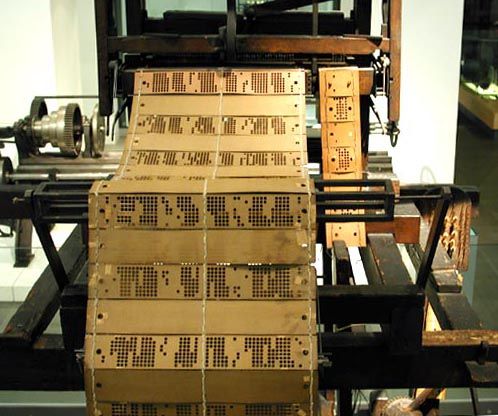
The other big innovation leading to computers we recognise today is the concept of programming. Programming is a way of storing up a sequence of instructions to the computer in such a way that, if you periodically re-run the programme, it will carry out the same actions without you having to input all the instructions again. In fact, even before electronic computers, there existed mechanical ones that ran from programmes. The most famous of these was the Jacquard Loom. In 1804 a French weaver names Joseph Marie Jacquard developed a loom in which the pattern of cloth being woven was controlled by a long paper tape consisting of card with holes punched in it. The trick was that the design could be changed by using a different tape without having to make any alterations to the loom itself. This was the forerunner of punched cards used in early computers and neatly demonstrates what a computer programme is.  Here is a picture of a Jacquard loom.
Picture


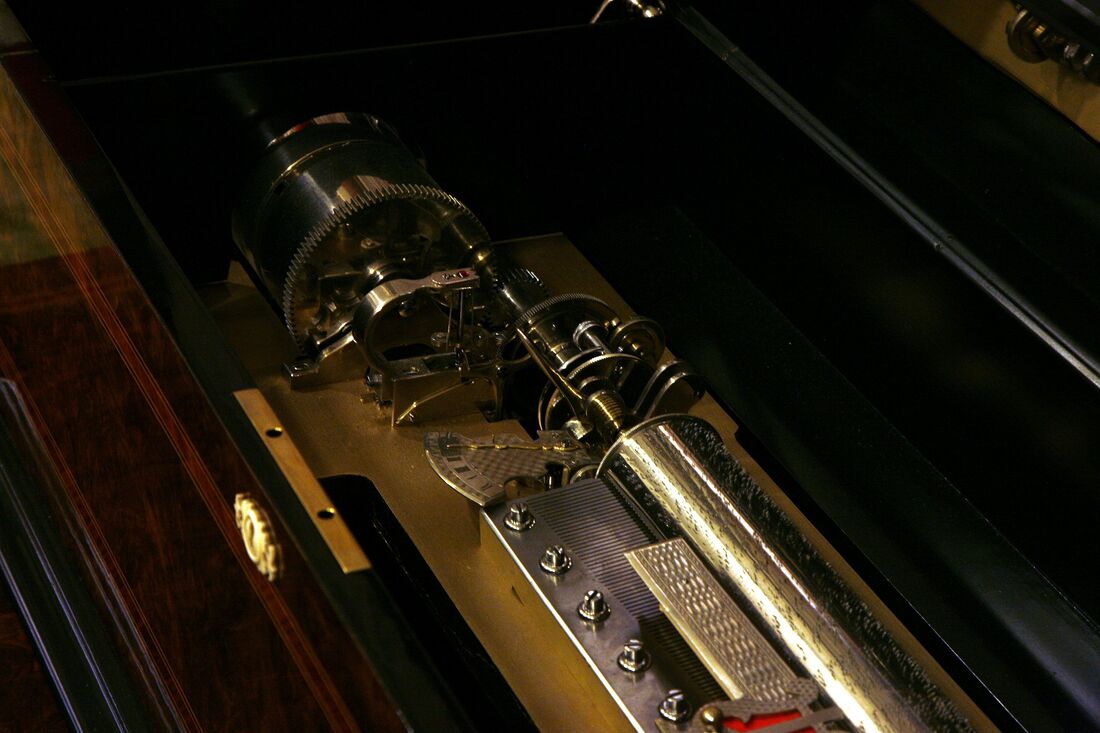
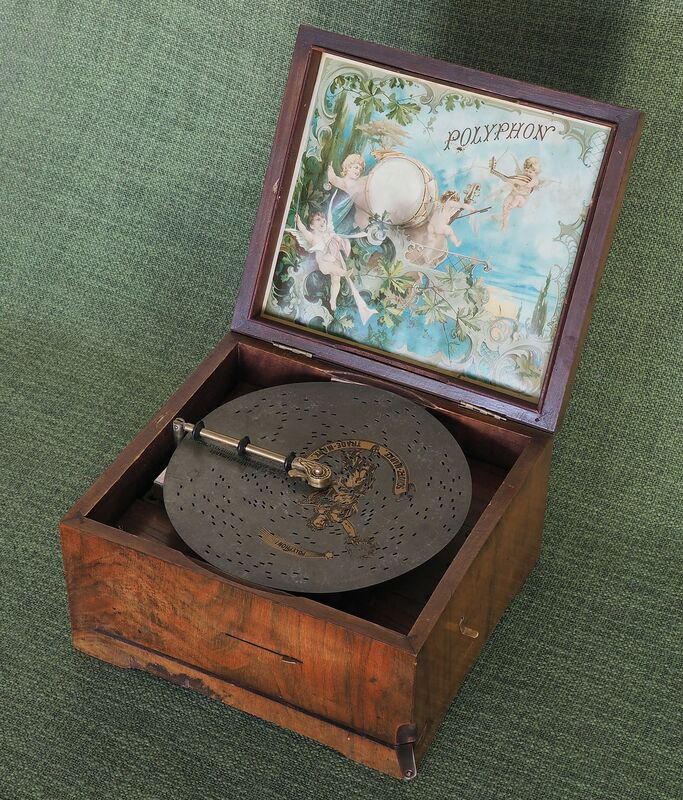
​You may be able to think of other devices that worked from interchangeable tapes or cylinders. Here is a selection showing a barrel organ, an automatic piano (pianola) and a record playing disc (musical boxes operating under the same principle as these disks but with cylinders). (Photographs courtesy of Wikipedia)

Into the modern age
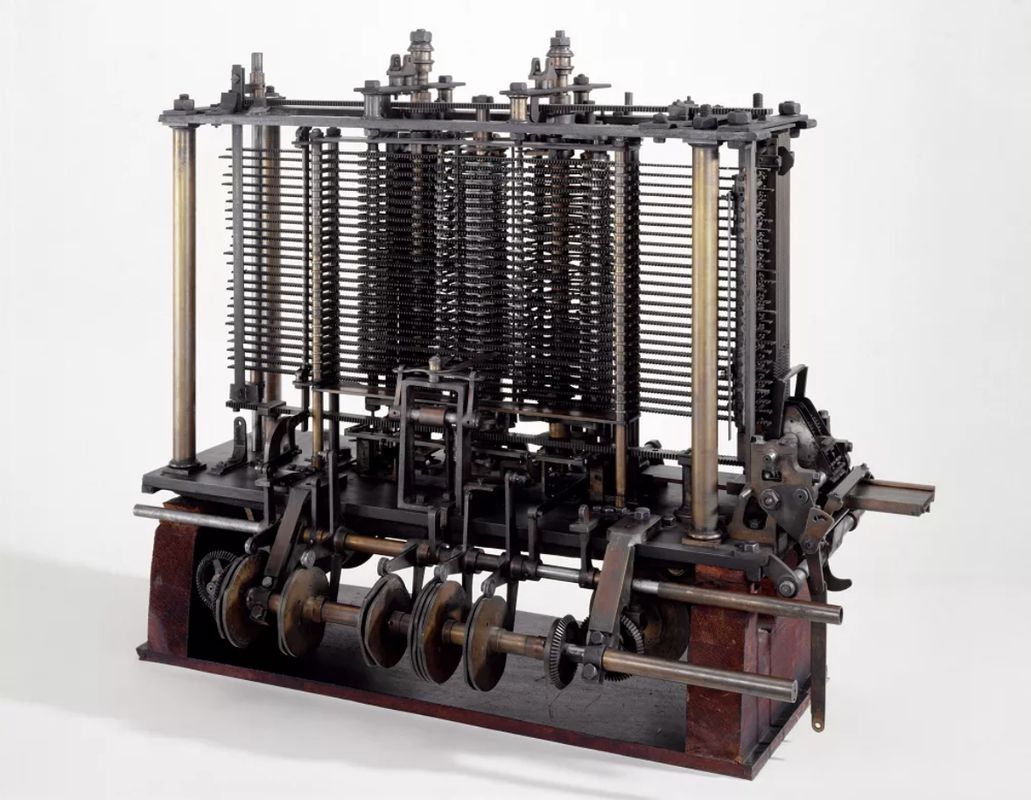
One of the forefathers of the modern computer is regarded as Charles Babbage who is credited with inventing the first mechanical computer in the late 1880s. He called this his Difference Engine (see the Wikipedia photo below). Although some say that he invented digital programming he actually copied the idea of using punched cards from the Jacquard Loom (see above). The innovation was the use of separate parts of his engine - one to carry out the calculations and the other to store the answers. One of the notable collaborators in his work was Countess Ada Lovelace​ who was the daughter of the poet Lord Byron. It is believed that she enhanced his work with the concept of storable algorithms (programmes) and is said to be the creator of digital programming. Indeed, a later programming language - ADA - was named after her.
Picture
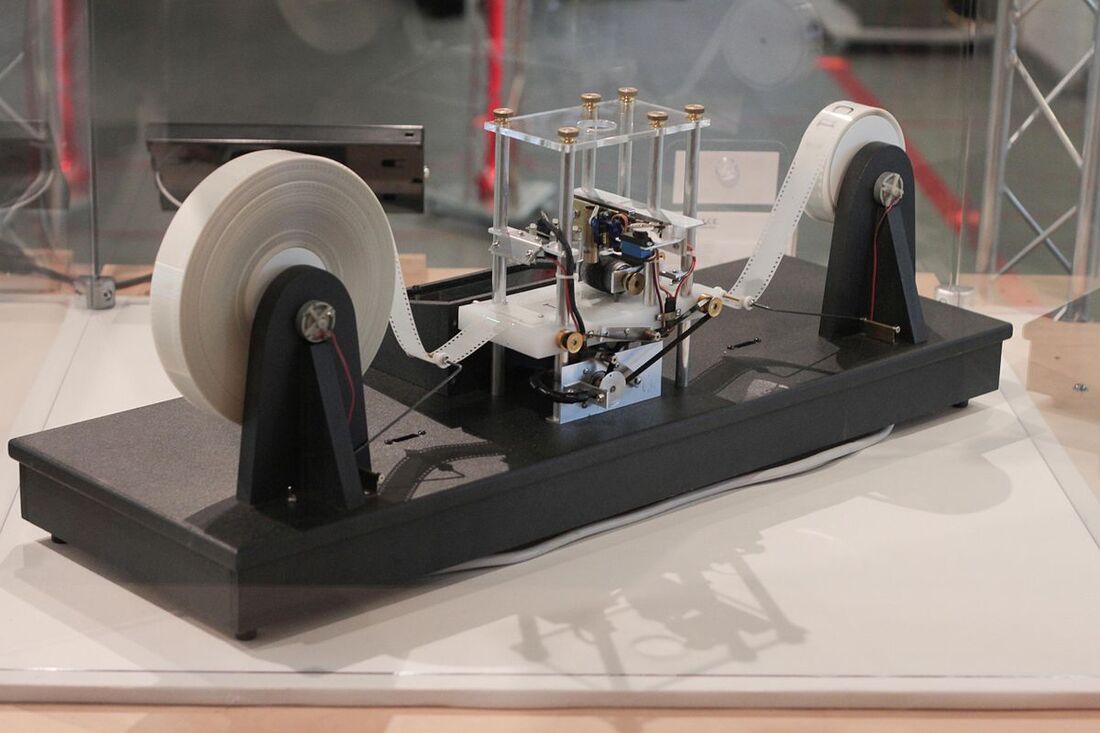
Into the 20th century, the most significant development was by Alan Turing (famous for his work at Bletchley Park) who designed his Automatic Computing Engine (see Wikipedia photo below) which set the standard for storable programming machines to carry out complex arithmetical tasks.
Picture
In parallel with these developments and looking at the computer as a calculator, for "number crunching", early calculators were mechanical, worked by turning a handle or pressing a key. In 1948 an Austrian inventor named Curt Herzstark produced a quite sophisticated, hand-cranked mechanical calculator which could add, subtract, multiply and divide. (Photo again courtesy of Wikipedia)
Picture
It is but a short step to providing these all calculators with a programme and electric power and we are on the first step of the ladder of development of today's computer. Find out how computers actually work in my next post.

Windows Updates

10/12/2020

 
It is important to keep one's computer and the programmes that run on it up to date. Vendors like Microsoft regularly send out updates the purpose of which is twofold. First they carry out the essential changes to programmes to plug loopholes and security risks and to correct software errors ("bugs") that can creep in to any programme. Failing to update in response to these announcements can potentially leave you at worst open to hackers and criminals and at best unable to escape the annoyances that bugs periodically exhibit. Second, however, updates are issued whenever the vendor has developed some new feature or capability and telling its customers about these is part of their after-sales service. As an aside, it is important always to remember the distinction between updates and upgrades. The former are as described above; upgrades on the other hand are invariably newer editions of the programmes that usually cost money to adopt.

So far so good. However, time and again updates can be so infuriating in the way that they both interrupt what we are currently doing and, more annoyingly, how they can completely change the way our computer appears and behaves on the screen. Technology (and any product in fact) is subject to a process called "continuous improvement" which is why there are so many updates and newer versions of everything to be temptingly downloaded. Worse still, the default with Windows is to install updates and features automatically unless the user carefully monitors update processes.  Even when an update is accepted, it often happens that the display settings and desktop layout (the User Interface [UI] as it is called) change significantly from how they looked before the update.  Nothing is guaranteed to confuse users more than to change something they have managed to get used to and are familiar with.  Imagine putting your car in for a regular service only to collect it afterwards and find that the pedals have changed and the speedometer now only works in kilometres.

Part of the problem is that software today - and Windows is typical - is so packed full with features that the average user would never need, and you have to put up with an unnecessarily large programme that needs regular download for updating. I always say that it is like being compelled to buy a Rolls Royce when all you need is a Mini to get to the shops. Why can't big vendors produce cut-down, simple versions for those who don't want and will never use all the "bells and whistles"?

The frustrations don't end there. You follow the instructions and let the computer carry out the update by restarting your machine whereupon it takes 40 minutes to carry out the update. And Windows always seems to know that you are just about to sit down for dinner or go out shopping. Grrr!


​

If only computers worked like they do in the movies!

10/12/2020

 
We've all watched movies and dramas on TV and at the cinema.  My favourites are spy thrillers and similar nail-biters - especially where computers and technology feature in the plot. Picture the scene: spy breaks into office/home/workplace to steal some secret information.  Convenient laptop/computer lies waiting on the desk. A quick lift of the lid and it bursts into life. Spy inserts a memory stick into the usb slot. Scene shifts to picture of memory stick downloading files at breakneck speed. Ten seconds later said spy grabs memory stick, pulls it out and slams down the lid leaving no trace of the intrusion.

Let's replay that scene how it would really happen: spy tries to break into office/home/workplace to steal some secret information. Door gets stuck and alarm goes off. Must hurry. Looks around but can't find the laptop anywhere because the owner has kept it locked away. When finally the spy discovers it (alarm still ringing) and lifts the lid it immediately requires a password which defies logic to remember. Assuming eventual success (ten minutes gone), laptop fires up and says "Windows is updating your system. Please do not switch off your computer." Five minutes later the screen still reads 30% but then finally restarts only to display a new screen telling you it is completing updates. Next, look for the usb slot. Problem, there are only two and one is in use for a mouse and the other for a printer. Once this is resolved, by the simple act of inserting a memory stick, the computer somehow miraculously recognises a new external drive and there is the required file sitting as an icon on the desktop screen just waiting to be copied. No it's not. You've got to hunt through a chaotic file directory in the hopes of finding what you want.  Having found the file you attempt to copy it to the memory stick.  Computer screen suddenly flashes up with "Target drive does not have sufficient space." Hunt round for a bigger memory stick. Eventually the file starts to download but gets three quarters of the way along the process and halts. Computer flashes up "Copy failed. Try again." Having corrected this you complete the file transfer and whip out the memory stick, whereupon the computer throws a hissy fit and says you didn't eject the drive properly.  You slam down the lid without, of course, closing down the machine or removing any trace of your presence and go out the door into the arms of the law who have responded to the alarm because it is now 30 minutes later. Somehow you manage to escape and return to base. You plug in the memory stick and it fails.  Computer says "Disk unreadable. Did not close files properly."
Ah! If only computers worked like they do in the movies.......

​

Spare that tree

10/12/2020

 
This post is slightly off-topic but has a direct relevance to information technology and computers. In our house we receive our weekly Radio Times by post. By the time we have discarded the plastic wrapper and sorted out all the advertising material and calls on our charity, we are finally able to read it. It got me thinking about the comparison between hard copy (printed) material and its digital (electronic) equivalent. 

I once weighed the pile of leaflets etc and they came to approximately 250gms.  Looking at the Radio Times circulation figures I see that they have distributed approximately 1 million copies during the past 12 months. A quick bit of arithmetic shows that over the year the RT therefore sends out 250 tons of excess paper - most of which, in all probability, soon reaches the bin.  This is just one magazine in one country.
​

Do we really need all this useless paper? At a time when we are being exhorted to think of the human impact on the climate and on natural resources, could we not save a few forests around the world by cutting out this waste? How much more economical would it be if as much as possible was distributed in digital form?  Of course, there are arguments both for and against this proposition.

For. Many tons of unnecessary paper would be prevented not to mention the ink, electricity for presses, fuel for vehicle delivery etc. Reduction in use of electricity and fuel would reduce pollution and boost green credentials. Waste collection burdens would be reduced along with the associated recycling costs.

Against. Charities and advertisers could lose out on revenue from the percentage of leaflets that are acted upon. Printers, lorry drivers, labourers and distributors could be out of employment as well as the providers of all the raw materials. The increase in digital formats would raise demand for technology to be able to read the material. More electronic equipment means more use of raw materials and power for production. Having one's copy on the computer would still not deter diehards from printing out hard copy!


​What do you think?
​

More Tips on Searching the Internet

6/12/2020

 
A previous post looked at Search Engines and described some of the ways in which they can help you find your way around the internet. I showed some of the standard ways for entering questions in the search box and how results can differ depending on time, location and popularity of the queries.  I now want to look in more detail about how you can refine your searches in order to narrow down the number of “hits” and get closer to the information you really want.
 
I explained that the most popular search engine by far is Google with 70% of the market. This post tends to focus mostly on Google for this reason but the principles hold good for most search engines though they do all have their own idiosyncrasies.  If you are having trouble applying some of my tips to your own preferred search engine you can always ask me a question by clicking on the big orange comments button on the right side of this blog page.
 
Before I begin, a couple of reminders. First, results at the top of the list returned invariably have Ad or Sponsored alongside them. This signifies that someone has paid money to increase their place in the list. It doesn’t mean that the hits at the top of the results page necessarily best match your query. Second, results tend to reflect the popularity of the site and the frequency that your query has been used by others. It is therefore sensible to phrase your search query as carefully as you can in order to increase the likelihood of success. This post offers help on doing just this.
 
Tips for better searching
Google does not bother about upper or lowercase so you don’t need to be grammatically correct in your search query.  Paris; paris or even PaRiS will yield the same results.
 
On the other hand, spelling does matter because people often mis-spell their search and the search engine will do its best to find the exact term. Parris will return practically anything but information about the capital of France! However, occasionally a little trick is to deliberately spell a search term wrongly because that just might return a site that people spelling correctly are never led to.
 
In most cases you don’t need to worry about typing complete sentences. For example, there is nothing wrong with typing Please tell me all about the bridges over the River Seine in Paris can be simply paraphrased as bridges over the seine or even seine bridges to get the same or similar results. Also, of course, it takes less time to type.  Mind you, if you mis-spell and type sean bridges you will learn all about people by that name but nothing about the River Seine.
 
Next, a word about the use of speech marks “  “ in queries. To Google, enclosing a search term in speech marks means find me exactly this term.  Thus if you type “sean” bridges paris you might get something like this:
Picture
Whereas if you type “Sean Bridges” paris you might get:
Picture
Let me digress a little here and talk about something called Search Engine Optimisation or SEO. SEO is a tool that web developers use to enhance the likelihood of search engines alighting on their website. Within the computer code for a web site is a section where developers can put key words.  In the above example key words might be Sean, Bridges and Paris.
 

Search engines, like Google, create massive indexes (OK, teachers, indices!) by scouring the internet for keywords. If these are conveniently located in the SEO part of the website coding it is easy for the search engine to pick them up and add to the index. Thus, when trying to find websites that match your search terms it is a much quicker process for the search engine to check the indexes first where the key word, if it exists, will have links to sites that contain it. There are companies that specialise in (and make money by) writing these keywords and sell their services on the basis of improving the hit rates for website owners. An example website will demonstrate this big SEO business.
Click here 
https://bit.ly/2VG4tLw  (NB. You will reach a site called Fiverr but be invited to sign up for an account. Just click outside the invite box to see the site.)
Incidentally, if you were expecting to see the name Fiverr in the link you may wonder why the term bit.ly is there instead. Bit.ly is a universal web service called a URL Shortener. URL shorteners are used to reduce very long website names to a short form.  I think you will agree that /2VG4tLw is preferable to the following which still goes to the same website.

​fiverr.com/categories/online-marketing/seo-services/keyword-research?utm_source=google&utm_medium=cpc&utm_campaign=g_uk_seo_desktop_bmm&utm_term=bmm_seo_optimization&utm_content=AdID^437787748548^Keyword^%2Bsearch%20%2Boptimization^Placement^^Device^c&caid=10139515118&agid=102023712139&ad_id=437787748548&kw=%2Bsearch%20%2Boptimization&lpcat=&show_join=true&gclid=CjwKCAiA_Kz-BRAJEiwAhJNY78FYk8oAHrFImH3ioidYTFHAyBbcsH-wDCOpDyHWKEkuugrgjjoVzxoCiTwQAvD_BwE&gclsrc=aw.ds

For those of you wondering why the shortener used .ly and know that this is a country code Top Level Domain (ccTLD), (just like .uk is United Kingdom) you may be surprised to know that this is the ccTLD for Lybia. The bit.ly service (based in New York) got rather worried after the unrest in Lybia in 2011 that security would be compromised. However, when the internet was shut down in Lybia, bit.ly purchased the domain name and boasts that it has never had any problems. By 2018 it had shortened 37.5 Billion URLs.

Where is my search box?
Different browsers have different ways of positioning their search box. Google is pretty straight forward and usually places it quite prominently. If you want a convenient screen that is always therefore you you can always head over to the Google website Google.co.uk where the search box is right in the middle of the screen. Better still, if you make this site your Home Page on your browser it will always open whenever you start your browser or click to create a new tab.
​

Lots more tweaks
A visit to the internet will quickly find hundreds of sites giving you advice and tips about refining your internet search. I would not try to cover more than a few of them in this post. If you are interested in finding out more there is a good site to visit here
Before I close however, a word about what are called operators. These are signs that you insert in your search to give specific instructions to the search engine. These include but are not limited to the +  - and * signs.
Use the plus sign when you want your search specifically to include a word or phrase. For example Garden Flowers +Springtime will make sure that spring flowers show in the list of results whereas using the minus sign Garden Flowers -Springtime will exclude them. Using an asterisk (sometimes called a wild card) and typing Garden * Springtime will most likely deliver flowers but also birds, jobs, and other results.

Off you go then; get searching!!
​


Picture

    Author

    Alan Pollard
    Retired computer professional now in my 70s but still passionate about computers, the internet and information technology in general.
    All views my own unless otherwise stated.

    Archives

    May 2021
    April 2021
    March 2021
    February 2021
    January 2021
    December 2020
    November 2020

    Categories

    All
    Blogging
    Buying Guides
    Communications & Networks
    Emails
    Internet
    Online Banking
    Passwords
    Printers
    Quirky
    Search Engines
    Social Media
    Terminology
    Windows

    ​Click to comment
    (only viewable by me)
    Picture
    Follow @MyTechTips44


© 2020 mytechtips.co.uk, Odstock, Salisbury, Wiltshire
All content on this site is licensed under a Creative Commons Attribution-NonCommercial-NoDerivs 3.0 Unported License except where otherwise attributed.
Website by Weebly