My Tech Tips


  • Home
  • Tips
  • Newsletter
  • Get in Touch
  • Privacy

Backups and Storage

28/2/2021

 
Keeping regular backups of data should be as routine as brushing your teeth twice a day - something you should do automatically. In this article I look at the subject of backups of your data and where you should store them. There are some basic points to understand about backing up data and I need to go through them here first.

Why back up? This ought to be fairly easy to answer and yet it is surprising how many people overlook the need. Although computers these days are pretty reliable they are not infallible and they can and do go wrong - sometimes quite disastrously. We all keep information (data) on our computers and tablets that is important to us. Invariably it comprises memories in the form of photographs, videos and other records. We also write quite a lot and send and receive emails from friends and businesses. Those who may be writing professionally or who are, perhaps, documenting their family history (for example) would be horrified if all their efforts were suddenly to disappear. Think of the heartache if you were to lose hundreds of much-loved family and holiday photos. Common sense should dictate that you keep a copy of the most precious material.

Think about where to keep copies. It is very easy to make a copy of something and keep it alongside the original. However, you would be surprised at how many people will think they are religiously copying data only for me to find that they are - but on the same computer! They lay themselves open to the same risks as not making copies of the data in the first place. If their computer fails completely they simply lose two copies of their data. The golden rule about copies is that they must be kept in a different place or on a different medium to the originals.

Keep copies safe, secure out of sight. Exactly where this “different place” is will depend on how you perceive your vulnerability to other risks such as burglary, house fire or flood. Keeping a copy of data in the same house is better than not keeping a copy at all but it still potentially leaves you open to loss. You can minimise this loss, of course, by investing in a secure, lockable and fireproof container that is not easily removable. A wall safe is ideal. Alternatively it is possible to make copies and store them “off-site” in a separate secure location. Many businesses will do this in a secure back-up building outside their main premises. The only drawback to this is that every time you wish to update your copies you must retrieve them from wherever they are stored in order to do so. The way to overcome this is to keep digital copies of data (not physical ones such as disks) and keep those digital copies on someone else's computer. These days that someone else will most probably be computer storage provided on the internet - commonly called “in the cloud”.

Is one copy enough? Lastly, it is worth considering whether keeping just one copy of your data is sufficiently safe. If, for some reason, your backup location fails what will you then do. Although this is likely to be a rare occurrence it is not impossible for an internet/cloud-based company to go out of business with disastrous consequences for its customers. Maybe, if you are from the “belt and braces” school you might feel that a second copy kept at a different location might reduce your risks to the minimum. Many businesses follow this rule. For the average home user it is most probably 'overkill'.

Did you know?  In fact I didn’t but there is actually a World Backup Day! This year it is on 31st March 2021. You can find out about it on a dedicated website which contains many of the messages I have already outlined. You can read it here.

Type of Backup 
With these points in mind the rest of this article will look at the different types of backup and leave you to decide what is best for you. I’ll cover them under the following headings:
  • Local In-Built
  • Local External
  • Off-Site
  • Internet-based
Local In-Built. Using this term I am referring to keeping a backup copy of data on the same device as the original. Although this option is definitely better than nothing at all, it is by far not one to rely on.  You need to create a separate folder on your computer (which you can call ‘Data’, ‘Archive’, ‘Memories’ or whatever name you choose) and regularly copy your important stuff to that folder. You can create sub-folders as necessary. For those of you who are more technically-minded you might be aware that you can set up completely separate areas (called ‘partitions’) on your computer and these are allocated a letter of the alphabet to denote their name. You are probably already used to seeing something like C:/username on your file explorer. This is called a “Drive”. The C: Drive is where all the computer’s programs are stored and (unless you tell it otherwise) where the computer also stores your data. It is perfectly possible - and indeed desirable - to create a separate Drive (Partition) which will take a different letter of the alphabet. Commonly this will be the next available letter so it is pretty usual to see a D: Drive. I have not gone into detail about how to partition your disk to create separate drives but I needed to explain the concept for the purposes of this article. It is quite good practice to use the D: Drive to hold your data as this keeps it separate from the programs and operating system held in the C: Drive. This greatly eases the task of making copies of your data for security purposes because you don't have to go searching through your computer to find it all. (Later on, when I look at external drives connected to your computer you will find that they are automatically allocated a different letter as their ‘root’ name.) 
Do note of course that, although you may have your data held on its own drive, a D: Drive, this is only the original version of your data. It is not in itself a copy. People therefore feel that by making a copy of this data elsewhere on their computer they have somehow met the requirements of a backup. That is fine until the whole computer fails. This argues for backups to be held externally to the computer as in the next section.

Local External There are two options in this category the first of which is becoming far less used. They are CDs/DVDs and Removable Hard Drives.
​ 

CDs/DVDs
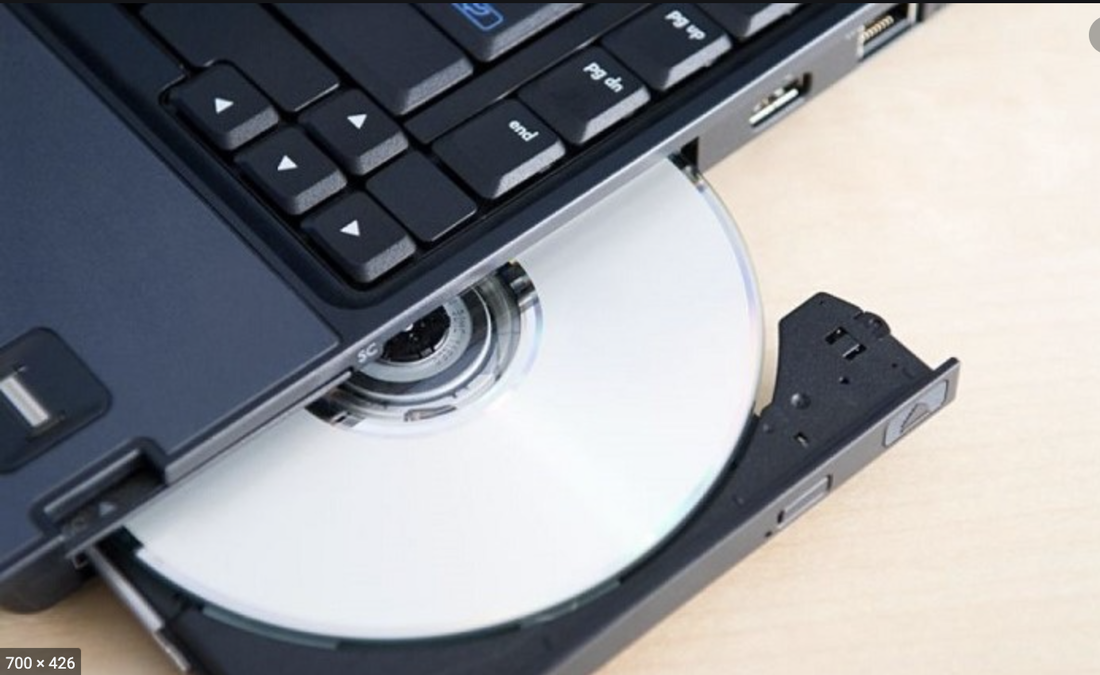
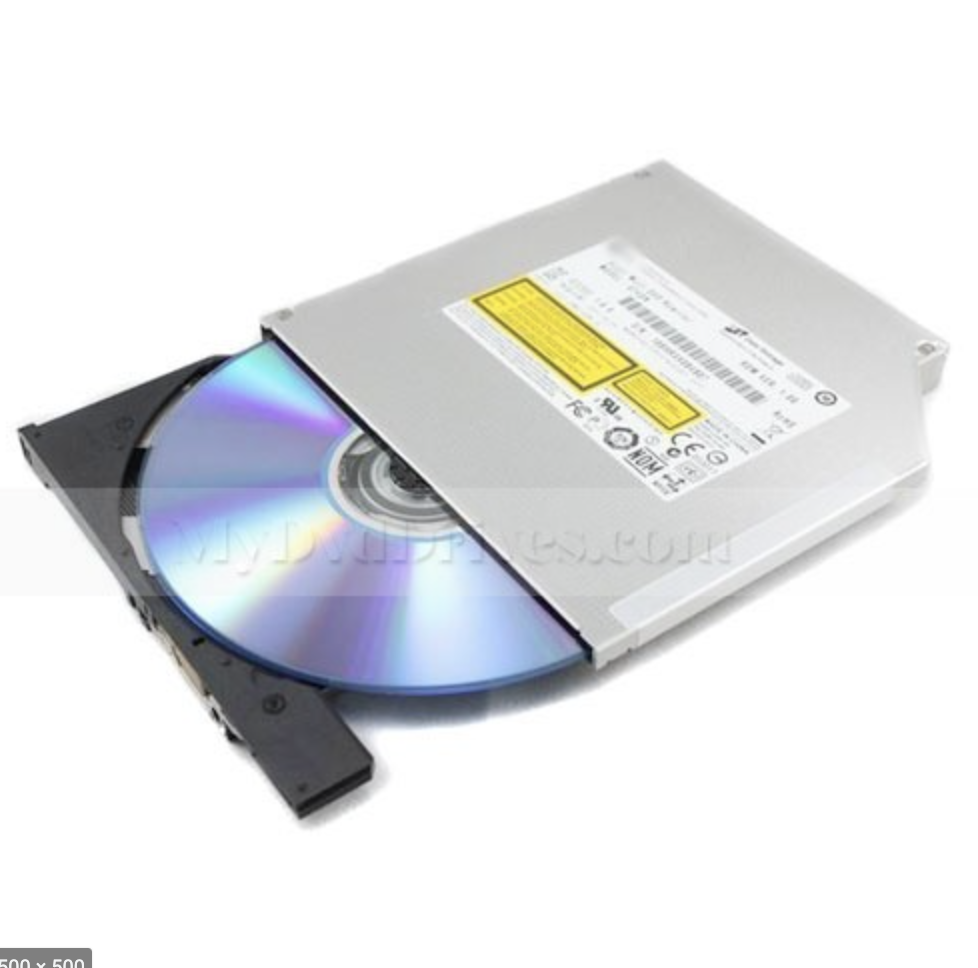
Data can be stored on a removable medium such as a CD or DVD disk. Some computers come complete with a mechanical drive that slides out of the computer and into which one places a recordable disk. Most people will be familiar with this. The slide out tray may be held in a laptop or computer tower.
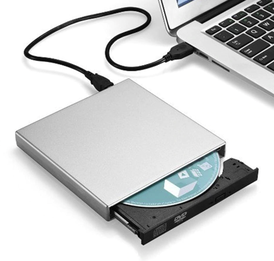
Sometimes this drive is not integral to the computer but is stand-alone and needs to be connected via a USB slot. Here is a picture of such an external CD/DVD disk Drive.
  
Picture

Originally the only available disk was a CD (Compact Disk) but these are much less used now for data storage since they can only hold a relatively small amount of data. The norm now is the DVD (Digital Video Disk - sometimes called a Digital Versatile Disk). The DVD can hold up to 7 times more data than a CD. It is worth mentioning here that there are lots of different kinds of CD and DVD. Without going into the variants, it is important that the one used must be capable of being read 
and written to (usually denoted by the abbreviation R/RW) and not just a read only disk (RO or ROM).
​
Removable Hard Drives
​
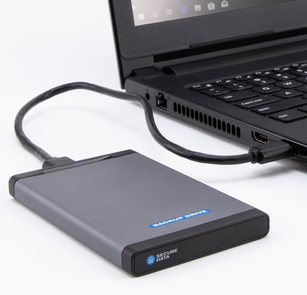
Far more regularly used now are removable hard drives. These can be of varying capacity mostly limited by how much you wish to pay. For the average home user, however, a drive holding 1 or 2Terabytes (TB) of data is ideal and is quite cheap. Expect to pay about £50. Anything less than 1TB is not really recommended. These external drives are very compact and typically the size of a cigarette packet. Like a removable DVD drive, they plug into a USB slot and are powered by the output from this slot.
Picture

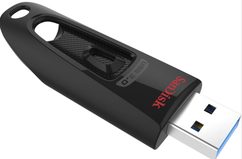
These days you can also buy a large capacity memory stick instead of an external drive. It will plug into the computer in the same way and is essentially another form of external drive. Memory sticks are sometimes called 'Flash Drives'. Their data capacity varies up to and exceeding 2TB but the only word of caution to offer is that they are easily lost or mislaid because of their small size. This photo is courtesy of SanDisk - one of the typical memory sticks. Many other makes are available.
Picture

​Word of warning. Many people use an external drive as extra (overflow) storage (if their inbuilt storage is running low) and it is quite acceptable to leave it plugged in. However, if you are using it for backup (as opposed to overflow) purposes, do remember that it runs the same risk as keeping backups on the internal storage. If the computer is stolen or destroyed the chances are your connected backup data will go the same way. Therefore, when you use an external drive or a memory stick for holding backups, do remember to store them in a safe place away from the computer when not in use. 

Off site storage. This type of storage tends to be used mostly by businesses who keep their backup disks at a safe place away from their main premises. Sometimes this is a dedicated second building. In the same way, the home user might consider keeping their external drives and memory sticks away from their home if they hold really precious data.

Internet-based. Internet-based storage is becoming the norm these days as it is so readily available, reliable and reasonably priced. Often called “Cloud Storage” it requires you to take out a subscription with a particular company (which may be storage offered by your internet provider or a third party) and trust them to look after your data. Provided you choose a well-known and well-established company you can now have peace of mind regarding long-term retention of your memories. Some of these internet-based products available act simply as online storage and you upload your data to them on an as-required basis. Others act in conjunction with your computer and regularly update the internet store with any new data you have created since the last update.

Summary
Which brings me on to some final points that concern backups in general. You need to pay particular attention to which copy of your data is the latest. In the jargon this is called ‘version control’. It is especially important when using some of the backup programs that are available on the market. When backing up data there is a need to differentiate between incremental and non-incremental backups. In order to make the backing up process as quick as possible most backup programs do what are called incremental backups. They compare the data on your computer with the data from the last backup and only copy across any changes. This is much more efficient in terms of computer processing time than if they were to copy the whole data file across. If trying to do the latter you will probably get a message asking if you want to make a copy or to replace the data on your external storage. If you make a copy you finish up with duplicated data. On the other hand, if you replace data you may find that a change on the computer that (for example) deleted an earlier version of a file, overwrites what is held on the backup store and you may lose earlier versions of the file. This does not happen with incremental backups.
A similar problem can exist with programs that synchronise data. In this form of backup the program compares the computer version (the source) within the backed up version and makes them both exactly the same. This can result in the program deleting some older material on either the source or the backup to ensure they look the same. That older material might be extremely important.
If this is all confusing you then don’t forget to make good use of Google (or whatever internet searching tool you prefer) to find out all about backups and synchronisation.  You’ll find some useful links as well as helpful videos on YouTube to guide you. 

Lastly
"That's all well and good." you might say "You've described all the different types of storage but you haven't actually told me how to make copies. I hope to be able to return to this in a follow up article at a later date.
​​

The Facebook Row in Australia

24/2/2021

 
Doubtless you will have heard and read a lot about the row that has broken out in Australia about Facebook’s right to publish news material on its users' pages and feeds. The publishers (the news media and journalists) argue that because their news content "shared" on a Facebook user’s page can be read by countless other people, then Facebook should pay the source of the news item just as if people who read it on Facebook had bought the newspaper or published article from the original source. Furthermore, they argue that, since the news item is quite likely to appear on the same page as an advert for a product related to that news item from which Facebook derives a revenue from the advertiser (for every time someone clicks on that advert), then Facebook are getting benefit from the item without any journalistic effort on their part.

This might be a valid argument were it not for the fact that Facebook itself is not "publishing" the article as such and that (Facebook would argue) it cannot predict or rule how much news feed Facebook users might wish to share. They would argue that it is the Facebook user who is the publisher NOT Facebook and it would be patently impractical to levy a charge against the millions users of Facebook who share news items. If you share a news item with a family member or group, are you publishing that news item in the true sense or merely repeating what you have heard or read?

Supporting the journalistic claim, the Australian Government threatened to bring in a law to mandate payment by social media companies like Facebook for the benefit they get from news items. In retaliation, Facebook temporarily blocked users in Australia from being able to read such news items on their news feeds. In fact, both parties then backed down and a calmer approach is currently being thrashed out.

Whilst there is a degree of logic in the media publishers' argument and undoubtedly people are reading their output without buying a newspaper or article, or subscribing to an internet-based news site, this totally ignores the universality of Facebook and the internet as a conveyor and sharer of information worldwide. As Sir Tim Berners-Lee (the architect of the World Wide Web) himself says "the Australian law could make the internet as we know it “unworkable,” arguing that it “risks breaching a fundamental principle of the web by requiring payment for linking between certain content online.”

Sir Nick Clegg (remember him?) who is now Vice President for Global Affairs for Facebook has today published an excellent article on this subject and indicated the way the affair might pan out. You can read his article here.

Computers & Printers - What To Get and Where To Buy

16/2/2021

 
​In my previous article giving some thoughts about what sort of computer to get (read it here) I wrote at some length on the subject, describing the different forms of computer and what questions you should ask yourself before parting with your money.  I promised a further two articles about where to buy your computer and what kind of printer to purchase.  I decided that I can best cover these two items in one combined post. Let’s look first at the subject of printers after which I shall suggest a short checklist of some of the factors to consider when looking at the buying options for all your IT needs.
 
Printers
Many of the questions I suggested that you need to consider when buying a computer apply equally to the purchase of a printer. Factors like where will you keep it; how often will you use it; what kind of items are you likely to print; etc can have an impact on your choice. For instance if space is at a premium it might not be advisable to invest in a large, office type machine.  Having said this, remember that most printers these days have a wireless capability so it is not always necessary to site the machine in the same room as your computer. Do bear in mind, though, that too many regular trips to the printer in another room can be come tiresome. Similarly, if you don’t think you will need a high-quality colour capability for photo work then scale down your options accordingly.  One possibility is to get a small portable printer that can produce factory quality colour prints in a 4x6” or similar size. Watch out for the price of the special paper here though.
 
Types of Printer
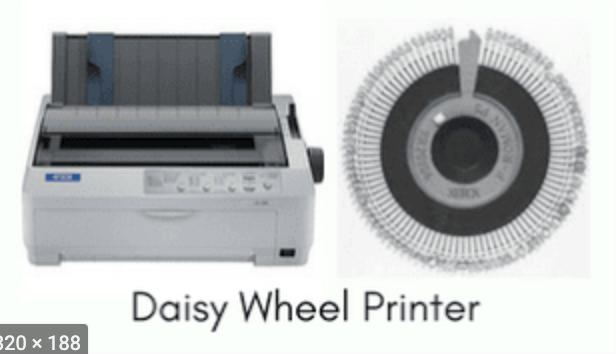
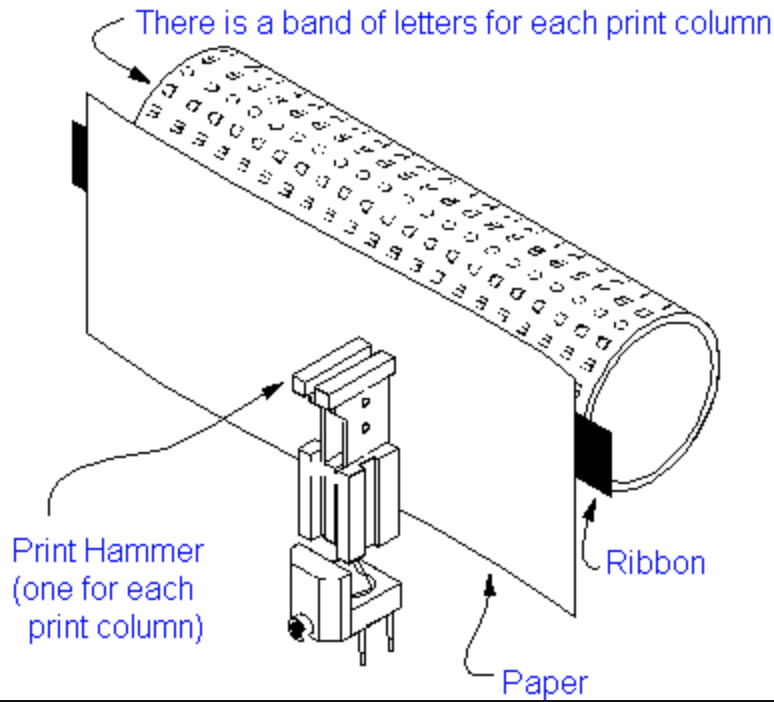
We have come a long way over the years from some of the clunky old printers of yesteryear. Two of the earliest printers followed the principle of the typewriter with fixed, pre-cast metal letters and ink ribbons. Here you can see a Barrel Line Printer and a Daisy Wheel Printer.
​

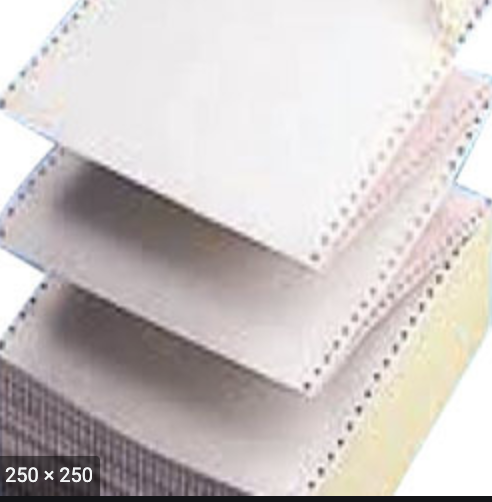
​Then came the Dot Matrix printers that used a print head impacting/striking the paper through a ribbon (again much like a typewriter). The difference between these and earlier printers was that the dot matrix printers work on impacting either a sheet-fed paper hopper or a continuous reel of paper with perforations to separate each sheet. This style of printer can still be bought today and is useful where multi-copy forms are being printed.
​

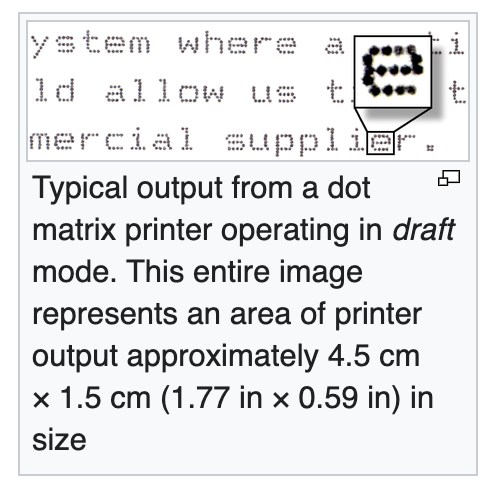
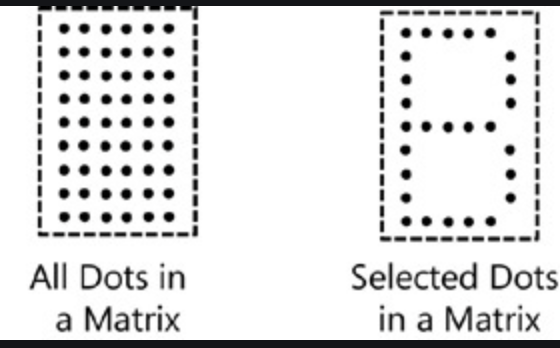
The other significant difference between the dot matrix printer and earlier ones was that the characters produced on the screen are not created by pressing an exact letter shape against a printer ribbon but by “firing” part of the print head against the ribbon forming the character on the paper in a pattern of dots.
​
​These dot matrix print heads evolved to become the basis of today’s printers which, instead of firing pins against a ribbon, send a burst of ink at the paper. These are called Inkjet and Bubble Jet printers. With these printers and all modern ones you buy replacement ink tanks or cartridges, instead of print ribbons, when you need replacements (which is when the print starts to fade).
It is possible to get ink cartridges that are re-fillable but this can be a messy process and also quite expensive to set up initially.
Replacement cartridges from the maker of the printer can be relied upon to give good results. However, there are many places on the internet where you can buy what are called “compatible” ink cartridges. These are not produced by the printer manufacturer but by a third party. Manufacturers will give you dire warnings about the dangers of using other than genuine replacement cartridges, citing machine damage through to poor print quality. I must say, however, that I have used many compatible inks over the years and have seldom had any problem with them.  
 
For the more professional printer output there are also Laser printers which can be bought either for Black & White or Colour. They work by firing an ink powder (toner) onto the paper. However, you need deep pockets for these - especially when it comes to buying replacement “toner” cartridges.
 
All-in-One printers   It is unusual these days to find a printer that just does printing. The majority of printers now act as copiers and scanners and these capabilities are provided “all-in-one”. Generally speaking this type of printer should really be the one to opt for. They don't usually cost much more than a simple printer without copier or scanner.
 
Where Should I Buy My IT Equipment?
Whether it is a computer, tablet or printer there is no shortage of options for where to buy from. These range from major stores; specialist computer shops; direct manufacturer sales; any number of small suppliers; Amazon and private sellers. Below I have offered a check list of some of the things to consider. These points apply whatever type of IT equipment you are buying.
  • Generally speaking it pays to shop around and compare prices before deciding.
  • It is also important to beware of the reliability of the seller. This is unlikely to be a problem with major department stores but definitely worth a good deal of research if it is a private seller.
  • With a private sale be careful about parting with cash until receipt of the goods. If this is not possible, always use credit card since they include some consumer protection should the goods prove faulty or fraudulent.
  • Make use of review sites and customer reports always bearing in mind that sometimes these can be “economical with the truth”.
  • Make sure you have a clear idea of what you want your purchase to include – in other words its specification.
  • Check after-sales service and all-important guarantees. I would generally advise you to steer clear of after-sales support packages from stores which are often offered in order to bump up the salesman’s totals. Some major stores will include a complementary guarantee in the sale and these can be excellent value.
  • Unless you are adventurous you should go for known makes rather than custom-built machines.
  • Be careful when comparing prices that you are looking at like for like; what might look like a better price might hide a smaller memory or less powerful processor.
  • Look at the year of manufacture and try to buy the most recent model.
  • If buying off the internet make sure that you cost in delivery prices.
  • New or second-hand? Don’t necessarily discard the second-hand market as you can sometimes obtain more power and features for the same money as a new machine.
  • Always make sure when looking at an advert that the necessary peripherals are included. What looks like a good computer and screen might actually not have a keyboard or mouse with it and these will add to the cost.
  • Always face the fact that the minute one buys anything there will surely be a better model on sale the next day!
  • Lastly remember my earlier advice; if you have carried out your proper research and made your choice, you should avoid the disappointment of regretting what you have bought.
Summary
Any major purchase involves a degree of risk. However, if you take time in reaching your decision and remember the guidelines I have suggested you should have nothing to worry about.

What Computer Should I Get?

10/2/2021

 
​I am frequently asked for advice about what computer, printer, phone or tablet to buy.  This is always one of the most difficult questions to answer because there are so many variables and it all depends on personal preferences. In this article I shall try to provide some general guidance about what kind of things to look for; what options exist; what is best in any price range; and (importantly) what the equipment is to be used for. 

This guide has the following sections:
  • Introduction  
  • Questions to ask yourself first
    • What am I going to use my new equipment for?
    • How much do I want to spend (New/Used)?
    • How frequently am I going to use it?
    • Where am I going to use it?
    • Do I have any dexterity/eyesight problems?
    • What have I currently got and do I really need to change?  
  • Categories of Equipment
    • Computers *
    • Tablets ++
    • Mobile Phones ++
    • Printers**
* In a second article I shall look at the various buying options so look out for Computers – Where to Buy in the next week or so. 

** Nine times out of ten when someone asks me about buying a computer they will couple this with a request for advice about a printer to go with it. Therefore do look out for the third article Printers - What to get on this subject.

++ Other than some general comments about tablets & mobile phones I do not intend to cover them in much detail in this article but may return to them at a future date. 
 
Introduction
Disclaimer. Before I begin I need to stress that there are no right or wrong answers when it comes to choosing computers and IT equipment. Any suggestions that I make are for guidance only and do not constitute recommendations to buy. However, I have many years’ experience in selecting and procuring equipment both in the public and private sectors as well as for personal use. I have learnt some hard lessons over the years that have instilled in me a number of maxims as follows:
  • Think and plan before you buy.
  • Draw up a budget and adhere to it.
  • Remember that a higher price is not necessarily a guarantee of higher quality.
  • Never be rushed into a decision for fear of missing an opportunity.
  • Sticking to current, proven technologies is often more advisable than “trail-blazing” with the latest “must have”.
  • Realise that the minute you have chosen and made your purchase there will always be something just that little bit better coming on to the market. Such is the pace of technological change that we have to accept the inevitability of this fact of life.
  • Be honest with yourself when answering the key questions below.
Questions to ask yourself first
What am I going to use my new equipment for? Whether your proposed purchase is a computer, a tablet, a mobile phone or a printer, decide what you want to do with it. If you just want a basic computer to enable you to send and receive emails; connect to and look up things on the internet; and write a few letters; there is no need to buy an all-singing all-dancing model. Most basic computers these days are pretty powerful and are well capable of meeting the demands of today’s universal requirements for shopping and video-calling.
Conversely, if you think you might be tempted to be more adventurous once you have got used to the item, don’t expect a basic machine suddenly to be capable of things like online gaming, high quality photography, online entertainment, videos and concerts. When buying technology it is definitely ‘horses for courses'.
 
How much do I want to spend (New/Used)? Deciding how much to spend on your purchase should not be limited just to the cost of the item itself.  There is a factor in procurement, particularly of computers, called ‘Whole Life Cost’. Unfortunately, especially in public sector procurement, the WLC is not always counted in to the business decision. When working on a government computer procurement contract in the early 2000s, I was asked how cheaply I could purchase a computer for. I obtained a quote for a bulk purchase of a bottom of the range computer and communicated this cost. I had to explain that this did not include software; training; maintenance; power; planned replacements; etc. These are all factors that can make a huge difference to an investment decision.  Sadly, the basic computer cost was the figure that appealed to senior staff anxious to demonstrate “efficient government procurement” and this was seized upon with glee! The hoped-for savings could never be achieved.
At the personal, domestic level it is still important to work out how much your computer is going to cost you over its life. If it is a printer for example, it is well known that the basic cost of one can be very low. Manufacturers often sell these “at cost” or less because they make their money from the subsequent purchase of printer ink. A key factor to examine therefore is the estimated ink usage per 100 sheets of paper and, hence, the number of new inks you will need to buy over the life of the printer.
Don’t necessarily discard the second-hand option. Bought from reliable sources, a used machine can offer a much higher specification and performance capability than a new one at a comparable cost. If you consider this alongside your planned use of the equipment, an older machine may be perfectly capable of meeting one's basic needs for a good number of years.
 
How frequently am I going to use it?  You may not feel that this is an important factor but it can guide you to the sort of equipment to buy.  If like me you spend a good proportion of the day at your computer, you need to buy something that meets your style of working. For example, if buying a laptop that has a small screen and will be used (literally) on your lap or a cushion tray, you need to consider the ergonomic aspects of the machine. If it becomes uncomfortable to stay at the screen for long then this is no good for an enthusiastic user who spends a long time working.  A desktop computer is preferable as you can adapt the working position to your needs for lengthy periods.
Similarly, the amount of printing you plan to do can determine the size and position of your printer. If you rarely print anything, then a small portable printer can suffice. If you regularly print both colour and black and white and do quite a bit of copying, this will similarly have a bearing on your choice.
 
Where am I going to use it? Allied to the previous question is location. Will you regularly do your work at a desk or are you likely to take your equipment outside and on trips? Portability is obviously an issue for the latter.
If you want to be able to use the computer anywhere in the house – sometimes downstairs and at other times in the bedroom – then relying simply on a desktop computer that usually needs to be in a fixed position will not be for you. Many people now take lots of photos and modern tablets and mobile phones have a capability that rivals high end cameras.
 
Do I have any dexterity or visual/hearing problems? If you have problems with (for example) arthritis or have visual or hearing impairment, these need to be taken into consideration – especially for the size of any keyboard and screen. Some printer controls can be quite “fiddly” and you need to be aware of this before buying. Hearing problems may call for special software or speakers, whilst people without any vision can still find equipment designed for the blind and partially-sighted.
 
What have I already got and do I really need to change?  Sometimes it is a case of ‘better the devil you know’ and the attraction of a shiny new computer or tablet may be exciting but can bring with it a complete change to the way you have been used to working. A good example of this concerns the Windows operating system. It is well known that people used to earlier versions of Windows are often completely baffled when faced with the totally different layout (or User Interface as it is called) of the latest Windows 10. It is no surprise to learn that there is software available and regularly used that can make Windows 10 look like earlier versions.
If your desire to change is driven by frustration with the capabilities of your current computer, maybe you can consider updating some of the components of your present machine. You can add extra processing power and memory, buy a larger screen for your desktop, or add external storage if your current computer is getting full.
 
Summary. The military have a saying; “Time spent in reconnaissance is seldom time wasted.” Don’t rush into a buying decision without careful forward planning.
 
Categories of Equipment
This section of the article is about the various types of equipment you are likely to encounter and consider buying. I will look briefly at the following in turn: 
  • Computers
  • Tablets
  • Mobile Phones
  • Printers 
Computers
You may recall an earlier article of mine in which I looked at the history of computers and how they work. You can read it again here. These days computers are extremely powerful and come in all shapes and sizes. The Apple Watch on your wrist is a full-blown computer in its own right and is thousands of times more powerful than the computers that took the first man to the moon.
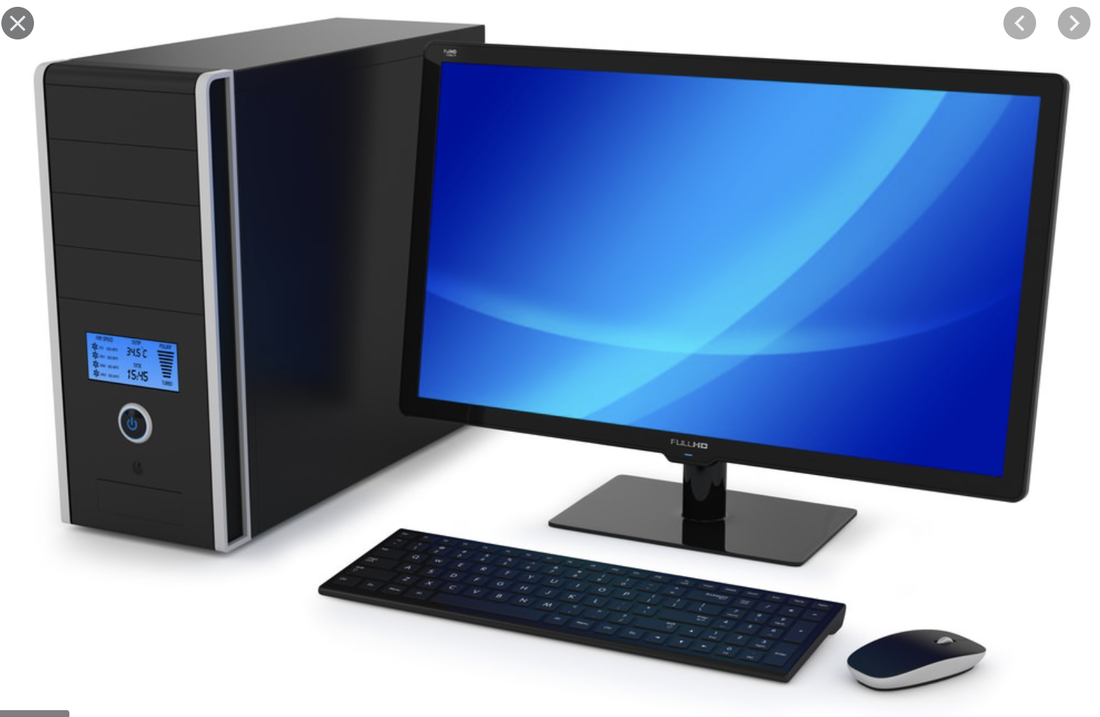
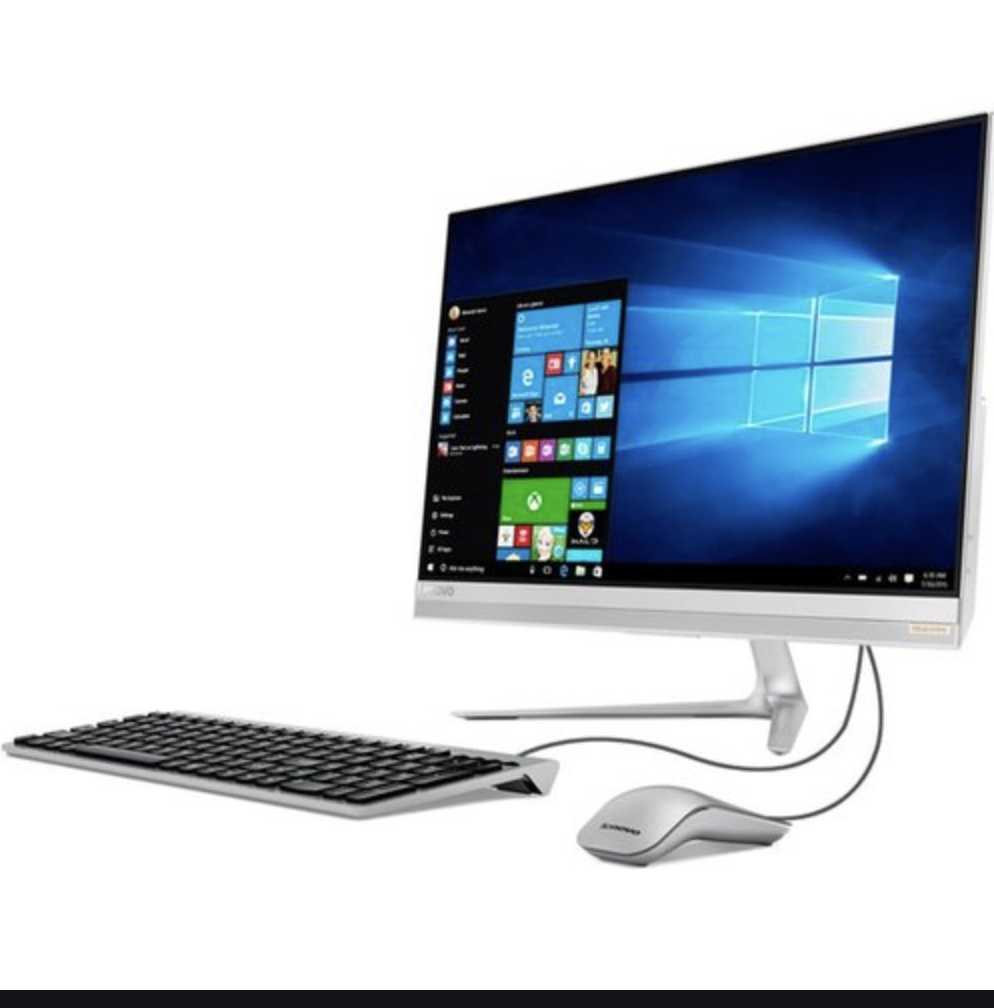
Generally speaking, a computer can be either a desktop, a laptop or a hand-held device.  Desktop computers can be either a screen with a separate computer box (or tower) or – more commonly now – an All-in-One device that has the computer workings and storage built in to the screen itself. The All-in-One variety saves on space requirements and avoids the need for a lot of trailing cables underneath your desk. The one main drawback is that it is much more difficult to gain access to the workings of the computer should you need to repair if or wish to add further components.
On the left below is a tower desktop and on the right an All-in-One.


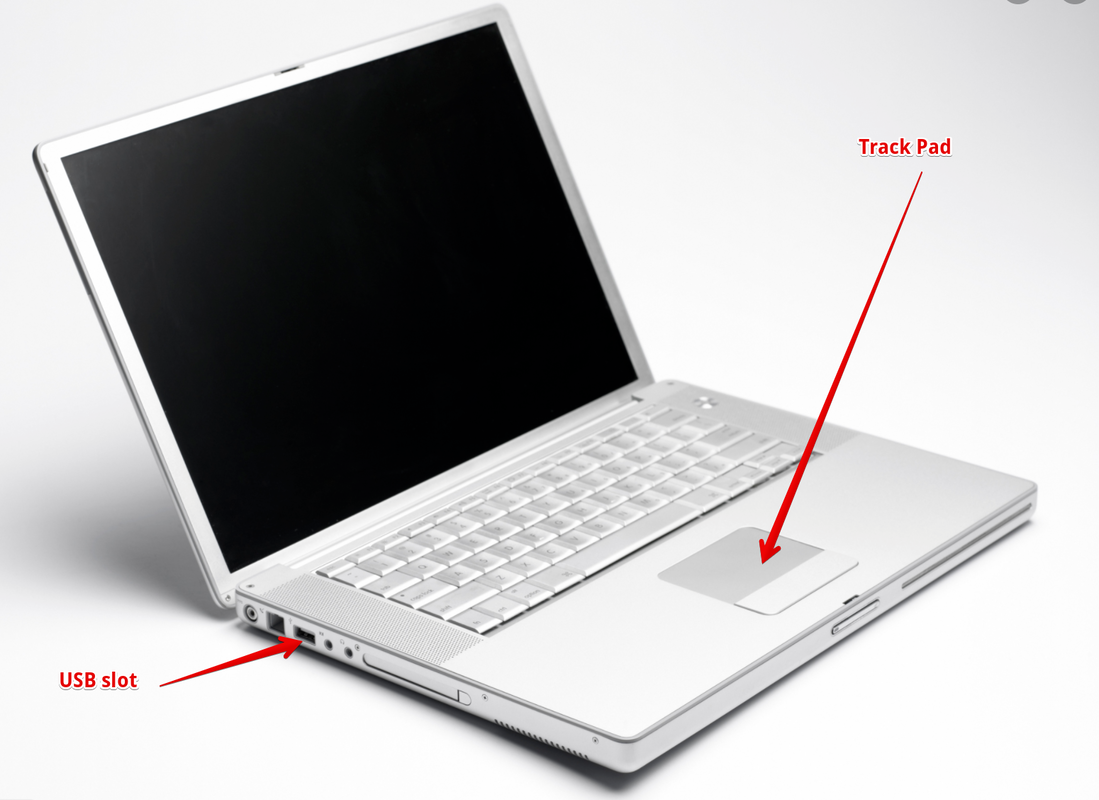
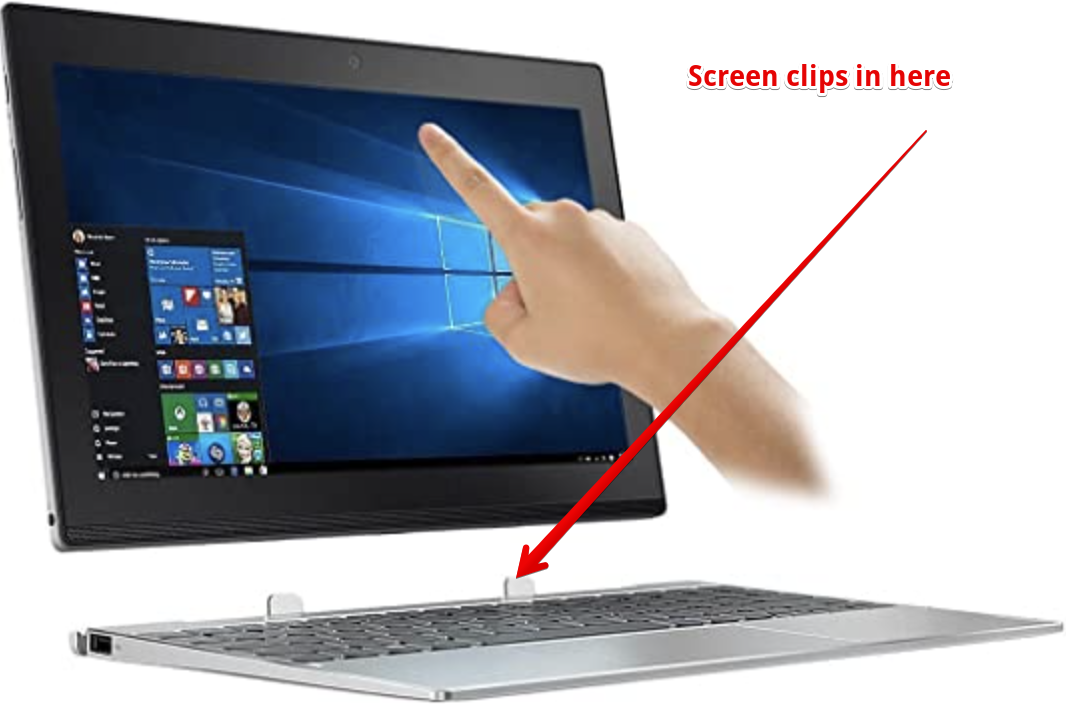
Laptops are easier to manage and are, of course, portable. Unlike a tower desktop they are difficult for the average user to access the working parts. There is a huge range of laptop computers and many are now becoming very similar to Tablets (see below) with the screen detachable from the keyboard. This provides the option to use the screen with touch entry or with conventional keyboard input. Laptops all have a built-in keyboard and mouse (the latter in the form of a track pad) whereas desktop computers require the addition of a separate keyboard and mouse. Not everyone likes the touch pad so you can always plug a mouse into the USB slot as in the picture below. The alternative detachable screen version is also depicted underneath.
​
Picture
Picture

Main things to look for​
Computer come in a wide range of sizes, formats and capabilities. The three main things to consider are the size of the screen, the amount of processing power, and the quantity of data storage.
 
Screen The size of the screen you need will depend on your eyesight as well as the space you have available to position the computer. Screens these days are of exceptional quality, are usually flat and are light years away from the old cathode ray tubes. Like modern television sets, screens vary considerably in picture quality, clarity etc, so it always pays to view before you buy if at all possible.
Increasingly these days, input of data and “navigation” round the computer screen is by means of touch, using the fingers directly onto the screen. Anyone familiar with a computer tablet (see later) will already be adept at using a touch capability.
 
Processing Power The processing power of a computer comprises two components which are the ‘engine’ or “chip” and the memory. The chip governs the speed with which your machine can perform calculations and handle all the tasks the computer has to carry out. The memory is effectively the working space for the processor. This working space is referred to as Random Access Memory (RAM). Think of it as the space available on a physical desk/table top or work area.  With a larger desk you can have a greater number of papers or books open around you as you work; a smaller desk means you will have to keep changing the position of your paperwork to be able to refer to it. With the computer, the size of RAM governs the amount of work the computer can carry out at one time without changing the contents of the memory. RAM is measured in Gigabytes. The more RAM you have the more work you can do at one time. Note, however, that if the RAM is not matched by an equally powerful processor chip the speed of your work will slow down. Consider 2GB of RAM as a minimum. 
 
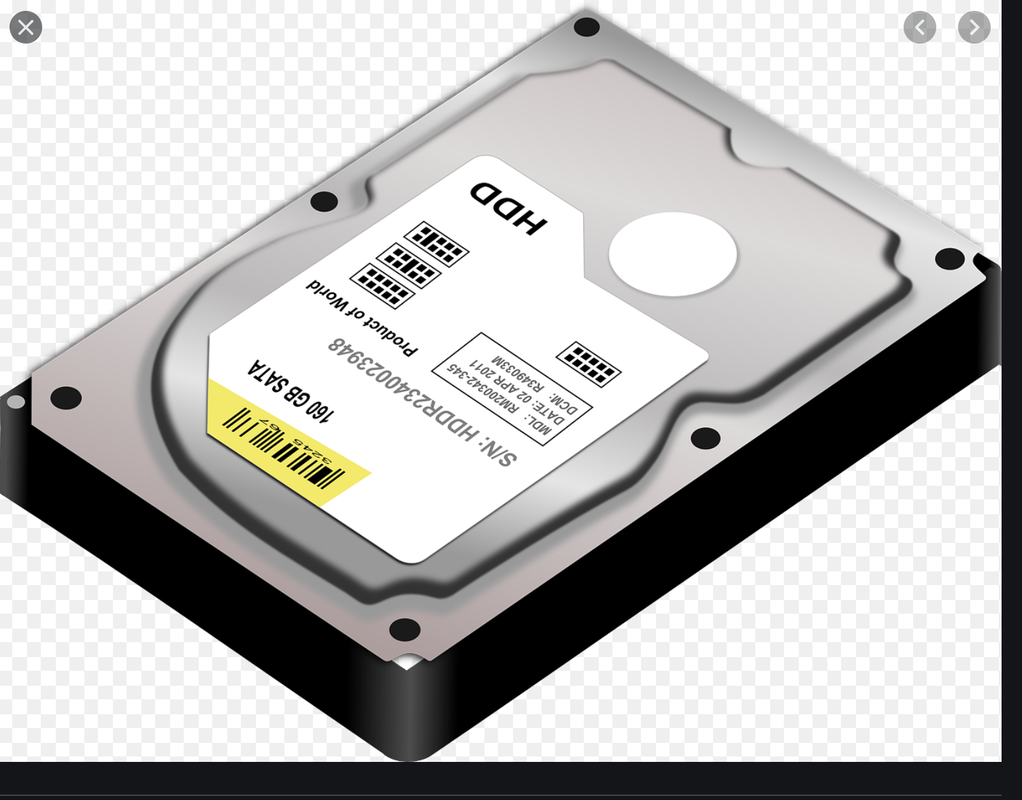
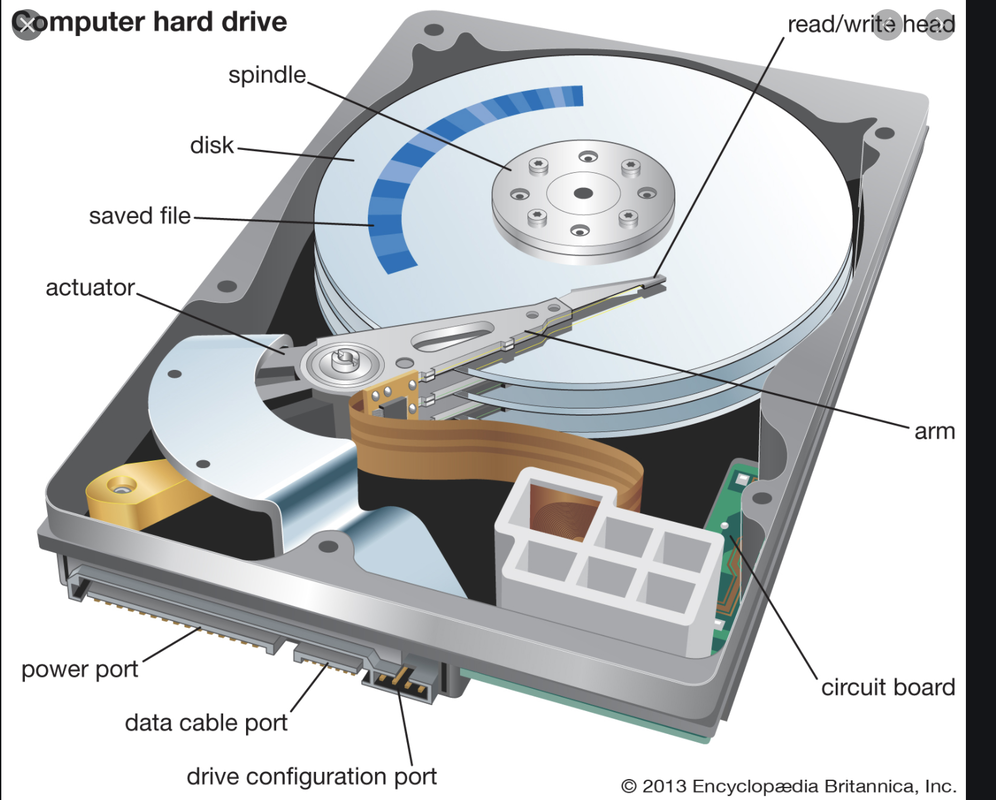
Data Storage Data storage is enabled on computers by means of internally-held storage facilities. In the past these were always in the form of a hard “drive” which was controlled by the computer and able to both read and write information to the stack of disks inside the drive.  Here is a picture of a typical computer hard disk drive (HDD) and, alongside, an exploded diagram showing the inner workings with moveable read/write arms.
​
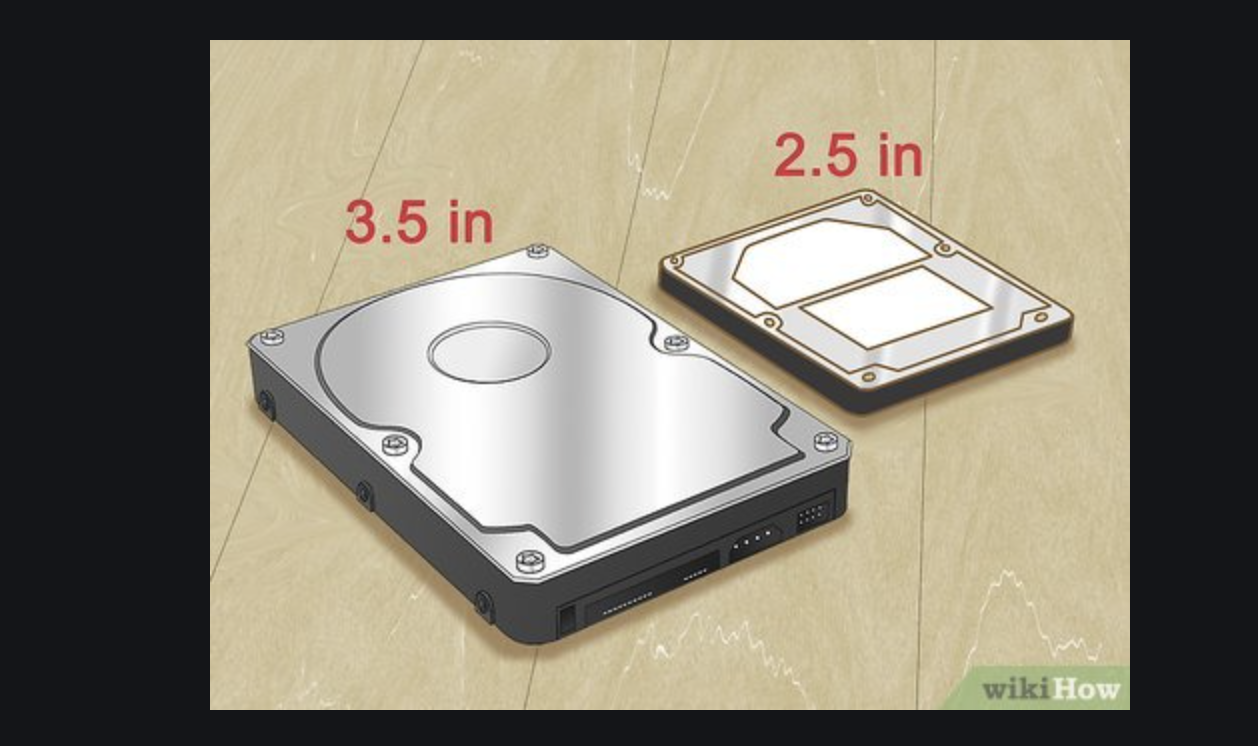
​In a desktop computer the HDD disk itself is standardised at 3.5” in diameter. In a laptop it is 2.5”.
Picture
​The storage capacity of a hard disk drive, measured in Gigabytes, will vary. When buying a computer it is best to avoid anything smaller than 250GB, but this size is perfectly adequate for the average home user. If your disk is starting to reach its capacity the easy solution is to invest in an external backup drive. (Backup drives and other forms of external storage will be covered in another article.)
Increasingly, internal (and external) storage disks are built not as a stack of hard round plates with moveable read/write arms (as in the above picture) but in what is called Solid State. This consists of an array of silicon chips with no moving parts. A Solid State Drive (SSD) is smaller and more reliable but does cost a little more.
 
Tablets
I mentioned earlier that more and more computers these days have a touch capability enabled. This capability gave rise to a blossoming market for the sale of tablets. Indeed, for many people these days a tablet might be their first introduction to computers. Having a desktop or laptop computer is now by no means a pre-requisite to being able to carry out all the functions previously only possible on a larger computer.
Tablets are now very much in our common vocabulary. The original tablet was the Apple iPad but many other varieties now exist. However, to some extent the Apple nomenclature has entered everyday language and you may hear reference to an iPad even if it is made by another manufacturer such as Samsung.
As I have depicted above, some machines on the market today are built with a dual functionality; they can be operated very much as a laptop or the screen can be “flipped” or detached and perform as a tablet.
I do not propose to go into any detail on tablets in this article but may return to it at some future occasion.
 
Mobile Phones
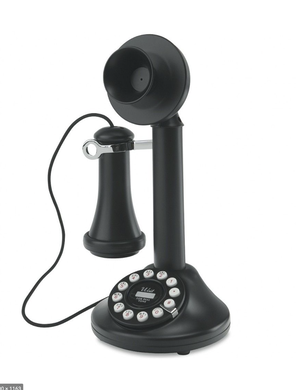
No article on computers could be complete without mentioning mobile phones. Though they were very different bits of equipment in the past, mobile phones these days are essentially computers in their own right. Many look just like a mini tablet and can perform most of the same functions. We have come a very long way from the original telephone.

Picture
​Printers
Nine times out of ten when someone asks me about buying a computer they will couple this with a request for advice about a printer to go with it. As with some of the other topics in this article, I will not delve into printers but look out for a future article on them.

A Shortage of Chips?

9/2/2021

 
When I set up this site I said that I would occasionally recommend other websites and articles that I feel are worth visiting. The article below is reproduced by kind permission of Julie at The Helpful Book Company. Julie writes their weekly Tech Tips newsletter (yes, surprisingly, there are other Tech Tips sites around as well as mine. However, Julie's is far more professional than mine could hope to be.) This week's article by Julie is about something very topical and important which potentially affects us all. The very last sentence says it all.
The Helpful Book Company also offers a comprehensive range of courses and books to help you navigate your way through the technology jungle. You can visit their site and sign up for the free weekly newsletter
here.

Today, I want to talk a bit about chips.  Not the tasty fried-potato foodstuff (mmm… chips), but the rather more techy silicon variety – microchips.
Now, you probably already realise that microchips are everywhere these days – not just in PCs, tablet and phones, but in TVs, washing machines, your central heating system, your car (unless you’ve got a proper classic)... even your dog.  But you might not know just how many there are.  I was reading an article the other day, and apparently the average new car uses over 100 separate microchips.  For a car!
And I’m afraid that, when it comes to making all these chips, there’s some "trouble at t’mill".
With the whole world in various degrees of lockdown over the last year, there’s been a massive surge in the number of people wanting new kit – laptops so they can work from home, tablets and other gadgets for video calling, games consoles to keep them occupied… On top of that, countries are rolling out the 5G mobile network (which needs yet more chips) – and the chip makers just can’t keep up!
It’s led to a serious shortage – particularly for car manufacturers (who need a slightly different type of chip from most other tech) but for tablet and phone makers, too.  Some car companies have already had to slow down or stop production entirely, because they just don’t have the chips to finish the job – according to the BBC, it’s been dubbed “chipageddon” by someone in the car industry!  Colourful.
But how does it affect other tech, and you specifically?
Well – there are two options when there’s a big shortage like this.  Either manufacturers start making more chips, or you end up with less choice and higher prices.  Sadly, in this case, it looks like it’s going to be the second.  Setting up a new factory to make silicon chips isn’t quick or easy – it’s a very fiddly, technical process – so it’s not really an option here.
It’s unlikely to affect the really big companies like Apple, because they’ve got very deep pockets and a lot of clout.  But the smaller tech firms might find themselves struggling for parts this year.
So my advice would be, if you’re thinking of investing in a new bit of kit, either do it now before the price goes up or wait a year or so for everything to settle down.

    Author

    Alan Pollard
    Retired computer professional now in my 70s but still passionate about computers, the internet and information technology in general.
    All views my own unless otherwise stated.

    Archives

    May 2021
    April 2021
    March 2021
    February 2021
    January 2021
    December 2020
    November 2020

    Categories

    All
    Blogging
    Buying Guides
    Communications & Networks
    Emails
    Internet
    Online Banking
    Passwords
    Printers
    Quirky
    Search Engines
    Social Media
    Terminology
    Windows

    ​Click to comment
    (only viewable by me)
    Picture
    Follow @MyTechTips44


© 2020 mytechtips.co.uk, Odstock, Salisbury, Wiltshire
All content on this site is licensed under a Creative Commons Attribution-NonCommercial-NoDerivs 3.0 Unported License except where otherwise attributed.
Website by Weebly